
ClickSave: Building an Image Download Extension
Contents
Felix and I developed ClickSave, a Chrome extension for downloading images from web pages. It began with a repetitive task while I was collecting design references. We soon found that downloading the right image and keeping the button reliable across different sites required more work than the initial interaction suggested.
The Image-Saving Problem
I needed to save many design references from Instagram, Pinterest, and other sites. Each image required a right-click, “Save image as,” and a destination. Some sites offered only a low-resolution preview through that route.
That led me to an extension that would show a download button when the cursor moved over an image.
The First Version
The first design was straightforward: detect the image under the cursor, show a button beside it, and save the file on click.
I shared the idea with my friend Felix Falkenberg (@ffalkenberg). He works in ML and DevOps and is a digital nomad. We decided to build the extension together.
I had written a few Chrome extensions before, but they were short-lived tools for my own use and never reached the store. This time we intended to release something others could use, which meant accounting for different image structures and everyday interactions.
Detecting Hover
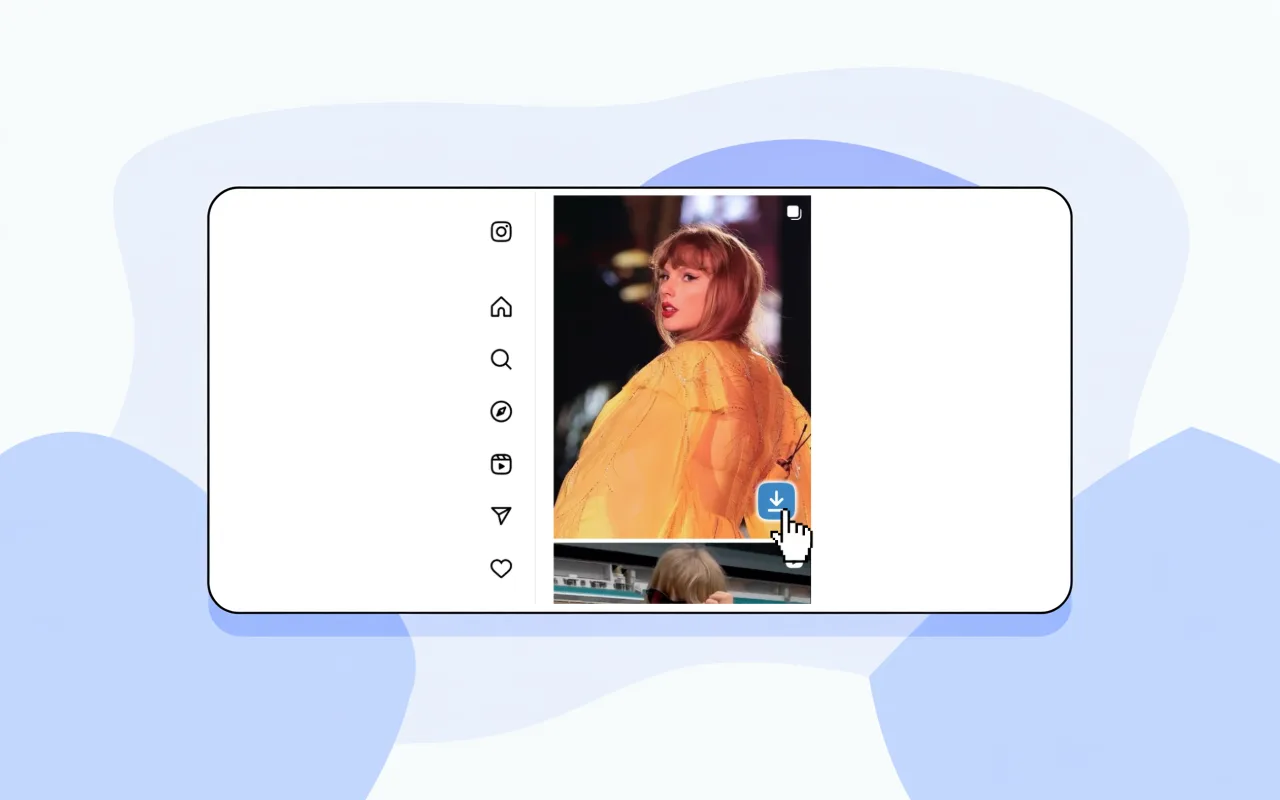
The finished extension displays a download button when the cursor moves over an image. In the first version, the button often flickered or disappeared as the cursor moved.
1 | // First attempt: the naive approach |
Testing revealed several problems:
- The button flickered constantly
- Performance problems made pages stutter
- Some images were never detected
- The button showed up in the wrong place
The first version did not account for the brief interval as the cursor moved from the image to the button. Adding a delay kept the button visible long enough to click.
Event Handling and Delay
After a few days of reading and testing, I learned why event delegation and debouncing matter:
1 | // Optimized version |
Finding the Original Image
Once the button appeared reliably, the next question was which image to download. Many sites show a thumbnail on the page, and downloading its src gives you only that thumbnail.
Image Sources on Google Images
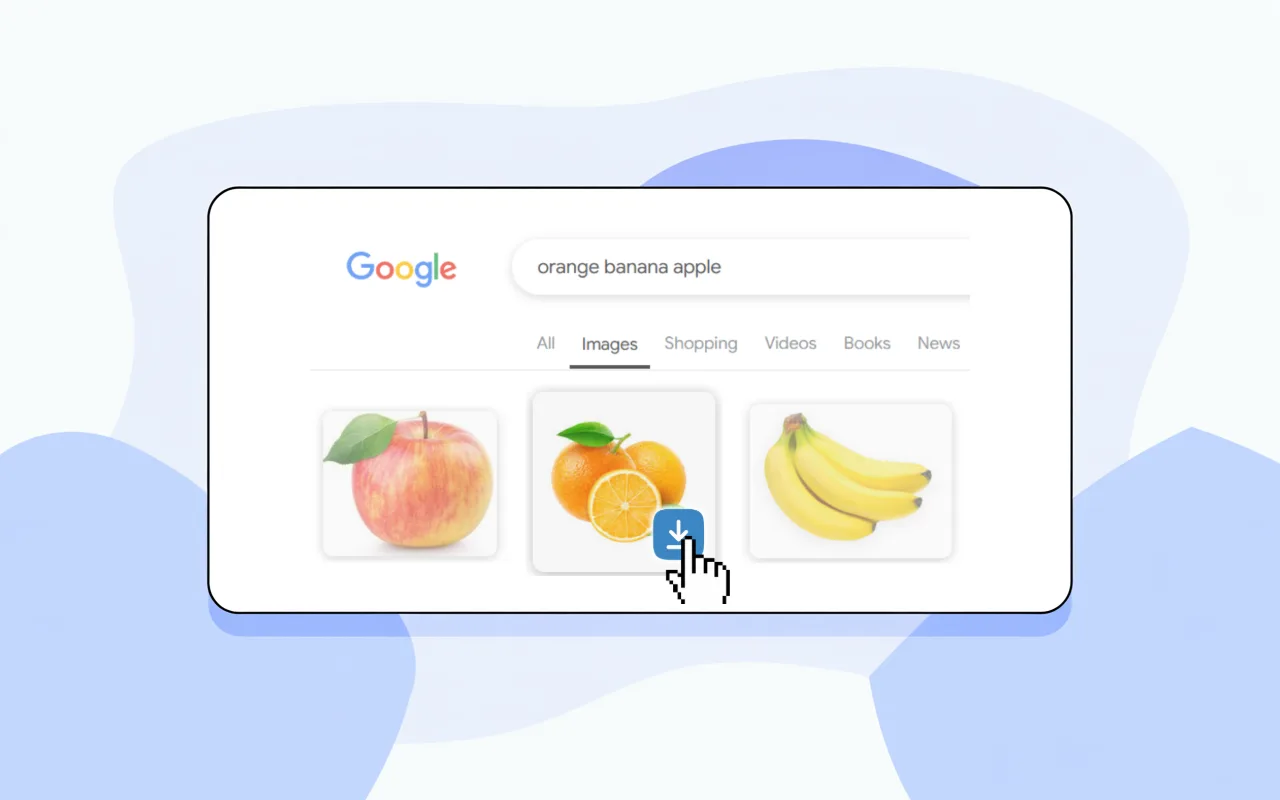
On Google Images, the image element’s src often points to a low-resolution preview. Finding the original URL means checking other attributes and data structures on the page.
I spent a week testing its page structure. I ended up checking several places where the original URL might be stored:
1 | // Google Images high-res detection: the final version after endless trial and error |
Image Structures Across Sites
Then we found that every major site has its own logic for storing images:
- Instagram: the high resolution image hides in
data-*attributes, but the attribute names change - Twitter: you modify a URL parameter to get the large version (
:largevs:small) - Pinterest: the original URL is hidden inside a complicated JSON structure
- Facebook: image versions nested several layers deep, requiring a recursive search
Each site needed its own resolver:
1 | class ImageResolver { |
Designing the Download Button
With the technical problems solved, we started running into user experience problems we hadn’t anticipated.
Positioning a Draggable Button
At first we pinned the download button to the top right corner of the image, and problems showed up quickly:
- On small images the button was overbearing
- It sometimes covered something that mattered, a watermark or text
- CSS from different sites interfered with how it rendered
We decided to make the button draggable, which brought a new technical problem: how do you keep the button inside the bounds of the image at all times?
1 | // Drag logic that keeps the button inside the image bounds |
Filtering Decorative Images
During testing we hit something we hadn’t expected: a lot of sites are full of small decorative images, such as:
- 1x1 pixel tracking images
- repeating patterns used for background decoration
- loading placeholders
- CSS background images
A download button on those is useless and gets in the way.
1 | // Image filtering |
Button States and Visual Feedback
I added careful animation and state indicators:
1 | .download-button { |
I wanted the button to be visible when needed and out of the way when the cursor moved off the image.
From Single to Batch Downloads
After friends tried the first version, someone asked if it could download every image on a page at once.
Felix and I started on batch downloads. We could not simply repeat the single-image flow dozens of times: we needed to limit concurrent requests and handle cases where some images failed.
Concurrency and Errors in Batch Downloads
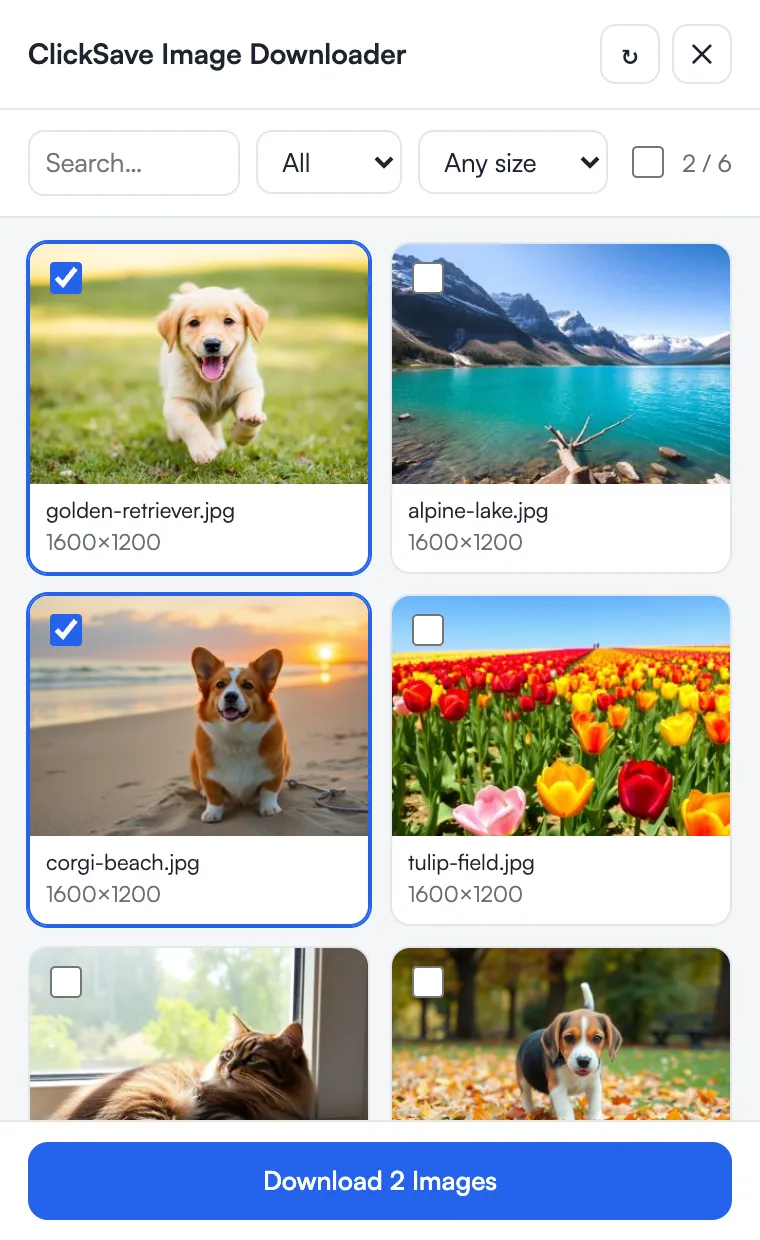
Batch downloading looks simple to implement and actually involves messy async work and error handling. We had to think about:
- not firing too many download requests at once, since the browser will throttle you
- handling the case where some downloads fail
- giving the user progress feedback
- avoiding duplicate downloads
1 | class BatchDownloader { |
Code Structure and Refactoring
As features piled up the code got complicated and hard to maintain, so we refactored:
1 | // Before: one giant file, 500+ lines |
Supporting another site may require another handler. If all the logic stays in one file, each change requires tracing through the existing code again. After splitting the modules, adding a site mainly means implementing the relevant interface, with a clearer scope for maintenance.
Maintaining Support Across Sites
The main maintenance problem is that website structures change. Google Images may store the original URL in data attributes, Twitter uses URL parameters to distinguish sizes, and Pinterest may put image data in JSON. The extension needs a different way to identify each source. A site redesign can make a previously reliable download method stop working.
Working with Felix gave us different ways to check the design. Batch downloading is one example: too many simultaneous requests could trigger browser limits, so we decided on concurrency and failure handling before implementing the feature.
Next Steps
ClickSave has passed review and is available on the Chrome Web Store. Possible next steps include image upscaling and background removal, support for Firefox and Safari, and syncing settings across devices. Actual usage will help determine their priority.
From Practice Project to Store Release
Most extensions I built before this one stopped once the intended operation worked on my machine. Releasing ClickSave for others meant handling cases easy to miss in testing: tracking pixels, decorative images with unusual aspect ratios, changing data attributes, and the many ways someone might drag the button. Those details determine whether the extension remains reliable in regular use.
Project links: